Chrome HTTPS by Default: Why Chrome Now Asks Before Opening Some Sites
Chrome 154 now asks before the first visit to a public site that lacks HTTPS. Here is what changed, how rare the warning is and how to adjust it.

In this story 8 sections
Chrome HTTPS by default means the browser now tries a secure connection first and asks permission before opening a public site that lacks one. Google scheduled the change for Chrome 154 in October 2026. If a warning page appears, the site is not using encryption, and you can choose to continue or go back.
This explainer is for anyone who has hit a new "not secure" interstitial and wondered if their browser broke. It covers what HTTPS does, what Chrome changed, why the warning is rare and how to adjust it. Oddworldz explains the plumbing behind everyday web behavior, and this change is a small but visible piece of it.
What does HTTPS do, and what changed in Chrome?

HTTPS encrypts the data traveling between your browser and a website. Plain HTTP sends that data in readable form, so anyone on the path can read or change it. Chrome's change makes the browser try HTTPS first and warn you when a public site cannot offer it.
The setting is not new. Google's HTTPS by default announcement says the "Always Use Secure Connections" option launched in 2022 as an opt-in. Chrome 154 flips it on for everyone. In that post, the Chrome team says the browser will ask for permission before the first access to any public site without HTTPS.
The rollout came in steps. A small share of users got it as a test in Chrome 141. People using Enhanced Safe Browsing got it in Chrome 147 in April 2026. Chrome 154 extends it to the default setting for all users. Rollouts reach people in waves, so you may not see the change on the same day as a friend.
The wording matters here. The warning is bypassable. Chrome does not block the site. It pauses, explains the risk and lets you decide.
Why is Chrome only warning about public sites?
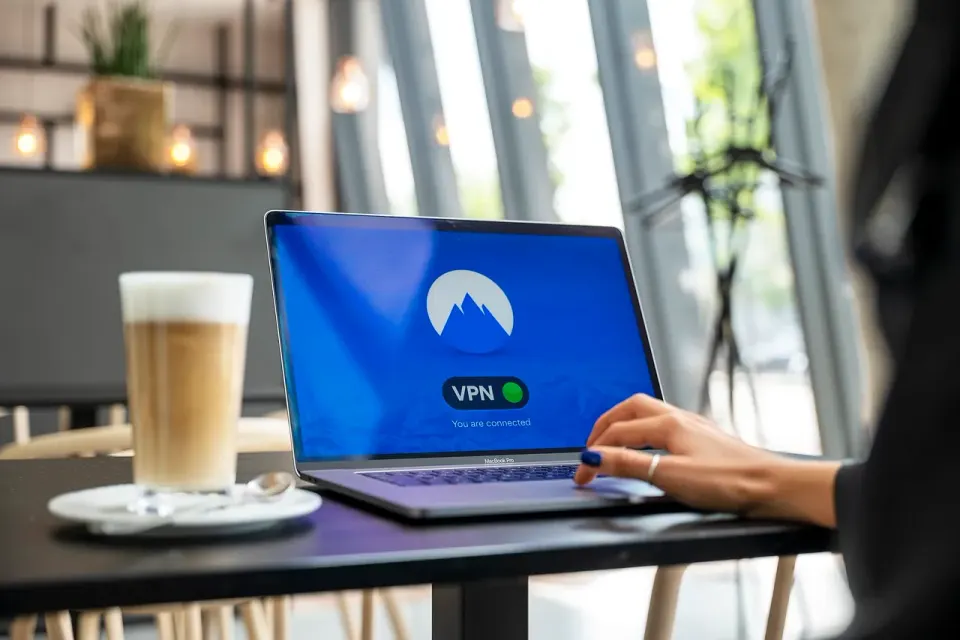
Chrome only warns about public sites because that is where the risk lives. Traffic to a public site crosses networks you do not control, such as cafe Wi-Fi or a hotel router. Traffic to a printer or router inside your home never leaves your network, so a warning there would mostly be noise.
Google's design excludes private addresses such as local IP numbers and single-word internal hostnames. A cheap home camera or a company intranet page will not trigger the new prompt. That keeps the warning focused on websites open to the whole internet.
The risk on shared networks is real. The US Cybersecurity and Infrastructure Security Agency (CISA) publishes guidance on securing wireless networks, and it tells people to deny file sharing when they join public networks. HTTPS does not fix every problem on a shared network. It does stop casual snooping on the pages you load.
Think of HTTP as a postcard and HTTPS as a sealed envelope. Everyone who handles the postcard can read it. The envelope still travels the same route, but the contents stay private.
How does Chrome decide when to show the warning?
Chrome follows a simple sequence. When you type an address or click a link that starts with http://, the browser first tries the HTTPS version of the same address. If the secure version loads, you never see anything unusual. The upgrade happens quietly in the background.
If the secure attempt fails, Chrome has a choice. Before this change, it would simply load the plain HTTP page. Now it stops and shows a full-page warning instead. The page explains that the connection is not private and offers a button to continue anyway.
This is why a site that "works fine" can still trigger the prompt. The site may serve pages over HTTP and have no secure version at all. Your browser is not claiming the page is malicious. It is saying the road to that page has no envelope on it.
How often will you actually see the warning?
Most people will see it rarely. More than 95 percent of websites already use encrypted connections, according to SecurityWeek's report on Google's plan. In Google's earlier test with the setting turned on by default, Chrome showed the warning on fewer than 3 percent of navigations.
Google also expects the number to fall. As more sites move to HTTPS, fewer pages will trigger the prompt. The company says the actual warning volume should be even lower once the setting is the default.
Chrome also avoids nagging. If you regularly visit an insecure site, the browser stops warning you about it. The prompt shows up on a first visit, which is when a surprise matters most.
Older sites are the usual trigger. A hobby forum, a small club page or an old manual hosted on a forgotten server may still use HTTP. The site works the same as before. You just see one extra click before it loads.
Is an HTTPS padlock proof a website is safe?

No. An HTTPS connection proves the data is encrypted in transit and that the site holds a valid certificate for its address. It does not prove the owner is honest. Scam and phishing sites can and do use HTTPS, so the padlock is not a trust badge.
Oddworldz has covered the certificate side of this system. Our explainer on why website certificates now expire every 200 days shows how the underlying credentials are issued and renewed. Those certificates are what let your browser confirm it reached the right address.
Phishing is a separate problem. We looked at how a passkey will not work on a fake website, which shows one practical defense that does not depend on you spotting a lookalike page. If you want a broader view of modern sign-in, see our guide to how passkeys replace passwords.
The US government treats HTTPS as a baseline, not a finish line. The White House Office of Management and Budget issued an HTTPS-Only Standard directive requiring that all publicly accessible federal websites and web services provide service only through a secure connection. That rule dates to 2015 and shows how long the web has been moving this way.
How do you change Chrome's secure connection setting?

You change the setting at chrome://settings/security, under the secure connections options. Turn "Always use secure connections" on to get warnings, or off to silence them. On recent versions you can also choose whether the warnings cover only public sites.
Most people should leave it on. The warning costs one click on a rare occasion, and it protects you from handing a password to a page that anyone on your network could read. Turn it off only if you routinely use old HTTP-only tools and understand the tradeoff.
Here is a quick test you can run. Type a site address with http:// in front and see what Chrome does. A modern site will usually jump to HTTPS on its own. An old HTTP-only site will trigger the prompt on your first visit. If your own site triggers it, that is a to-do for whoever runs the server.
You can also run a second check. Open a site you use every day and look at the address bar. Note whether it starts with https:// and whether the browser shows any warning. Repeat with two or three older sites you rarely visit. The pattern shows quickly which parts of the web have caught up and which have not.
What should site owners and regular users do now?
Site owners should move any remaining pages to HTTPS and fix old links. Check forgotten subdomains, download links and embedded images, because a single HTTP resource can trigger warnings. Redirect HTTP to HTTPS and keep certificates renewing on schedule.
A simple audit helps. Search your own pages for links that start with http://, open your site in a private window and watch for warnings. Then ask your hosting provider whether the certificate renews automatically. A lapsed certificate is the most common reason a once-secure site suddenly shows an error.
Regular users have a shorter list. Read the warning, check the address and pause before typing a password into any page that says it is not secure. When in doubt, use a different network or wait until you are on a trusted connection.
Conclusion: a small prompt with a long history
Chrome HTTPS by default is a small change with a big goal. It nudges the last holdouts toward encryption and gives people a moment to think before sending data over an open channel. The warning is rare, bypassable and easy to adjust.
The padlock does not equal trust, and the prompt does not equal danger. It simply says that the connection is not private. Knowing the difference turns an odd interruption into a useful signal.
Oddworldz will keep an eye on how browsers handle insecure pages from here. For now, the practical takeaway is short. Read the prompt, check the address and decide whether the page needs your password or any personal details at all.
Why does Chrome say a site is not secure before it loads?
Can I turn off Chrome's HTTP warning?
Does HTTPS mean a website is trustworthy?
Will the warning appear for devices on my home network?
In this story 8 sections
Keep Reading
All stories-
 How Things Work Online
Why One New Router Grounded US Flights: The FAA Ground Stop Explained
7 min read -
 How Things Work Online
Microsoft 365 Outage 2026 Explained: How Health Checks Can Spread a Failure
8 min read -
 How Things Work Online
How Passkeys Work: Why Your Phone Can Replace Your Password
8 min read
The Odd List · Fridays